Big Print, No Mistakes: How to Prepare Your Files for Large-Format Printing
There is nothing quite like the feeling of watching your brand come to life on a massive scale. Whether it is a brilliant new storefront Panaflex sign, a towering billboard, or a sleek acrylic display for your lobby, large-format printing turns heads and drives foot traffic.
But printing on a large scale comes with its own unique set of rules. A tiny file error that is invisible on your computer screen can become a glaring, blurry mistake when blown up to six feet wide. At Bescost Printing, we want your signage to look razor-sharp from the moment it leaves our production floor. To help you avoid costly reprints and delays, we have compiled the ultimate guide to preparing your artwork files for large-format success.
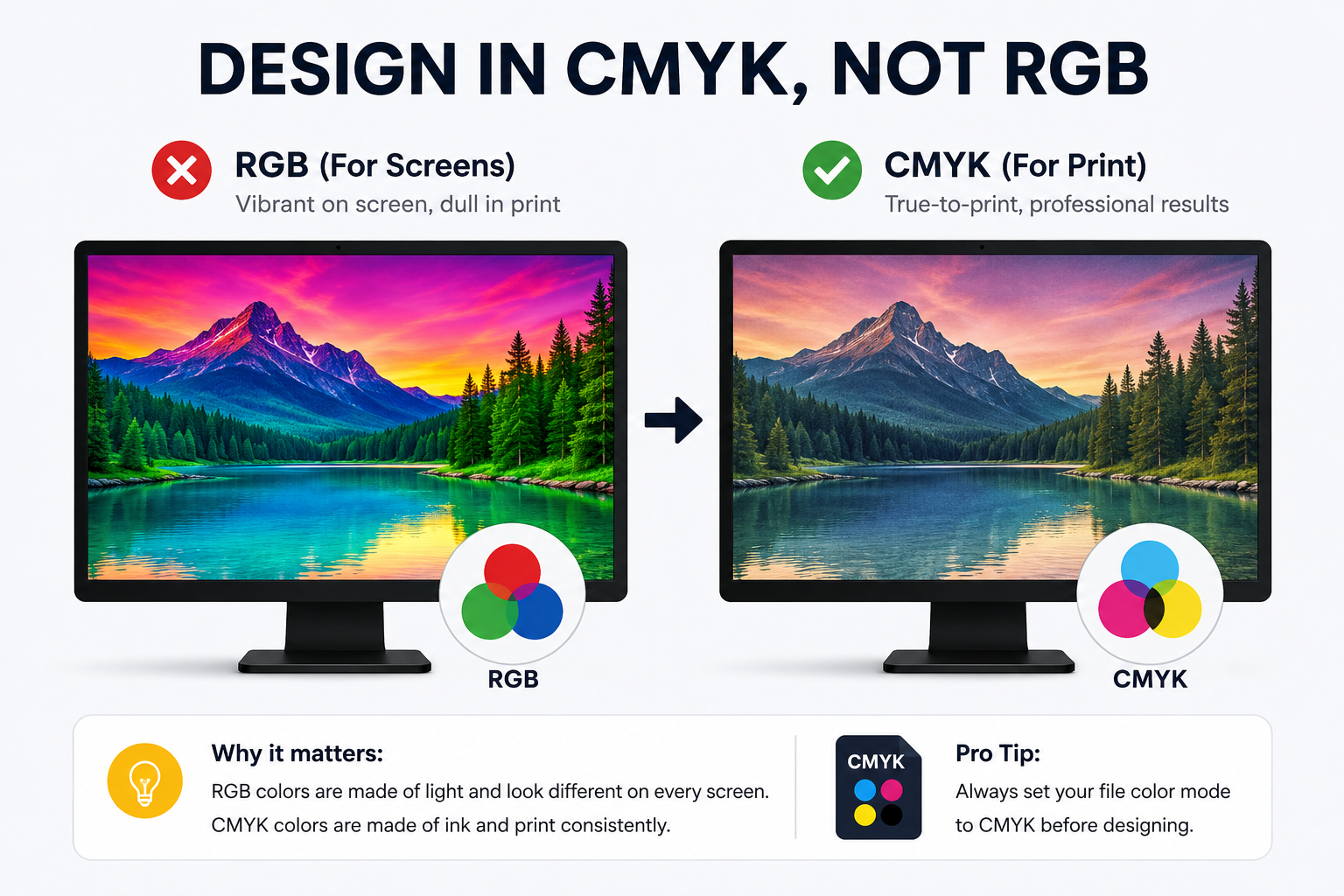
If you submit an artwork file in RGB, our prepress systems will automatically convert it to CMYK. This automatic shift can cause vibrant neon greens, deep blues, and bright oranges to look dull or muddy in print. Always set your design software color mode to CMYK Color before you start drawing your first line.
Close-up Displays (Banners, Acrylics, Posters): Aim for 150 ext{ to } 200 ext{ DPI} at full output size.
Distant Displays (Panaflex Signage, Storefronts): Around 100 ext{ to } 120 ext{ DPI} is perfect.
Massive Formats (Billboards, High Building Wraps): You can safely drop down to 75 ext{ DPI} without sacrificing visual clarity from the ground.
Pro-Tip from the Production Floor: Never pull photos directly off Google or social media. They are highly compressed, low-resolution (72 ext{ DPI}) images that will pixelate heavily when enlarged. Always use high-res stock photography or original raw camera assets.
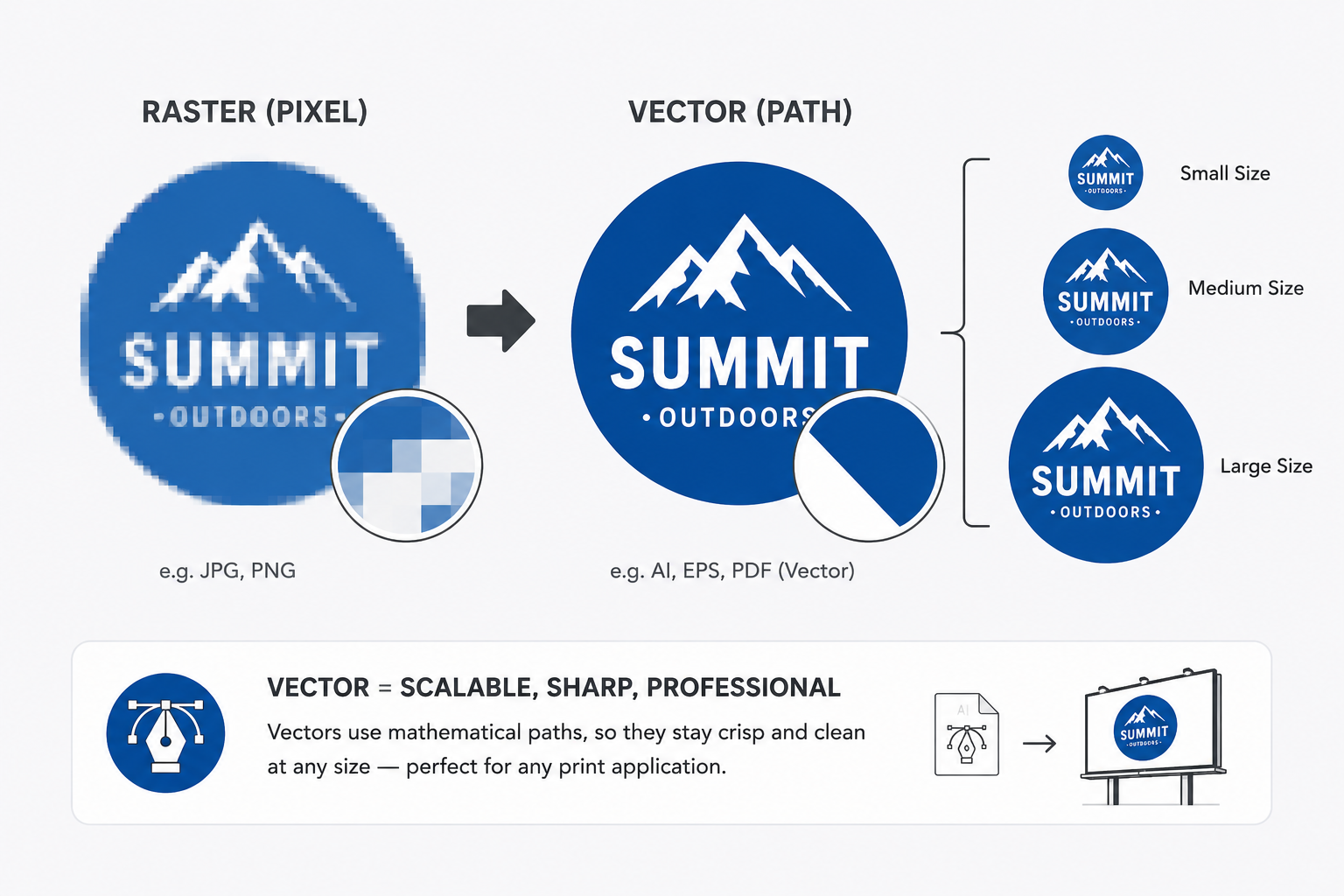
Vectors are a print designer's best friend. Because they rely on math instead of pixels, you can scale a vector logo from the size of a postage stamp to the size of a delivery truck, and it will remain perfectly crisp, sharp, and clean. Keep all logos, text elements, and flat icons in vector format.
Bleed Area: If your background color or image goes all the way to the edge, extend it at least 5mm to 10mm beyond the final trim size. This ensures no white borders show if the cutting blade or canvas shifting varies slightly.
Safe Zone: Keep all critical text, contact details, and vital logos at least 50mm (2 inches) inside the final cut margin. For Panaflex signs clamped tightly inside metal frames, keeping a safe margin ensures your lettering does not hide behind the frame borders.
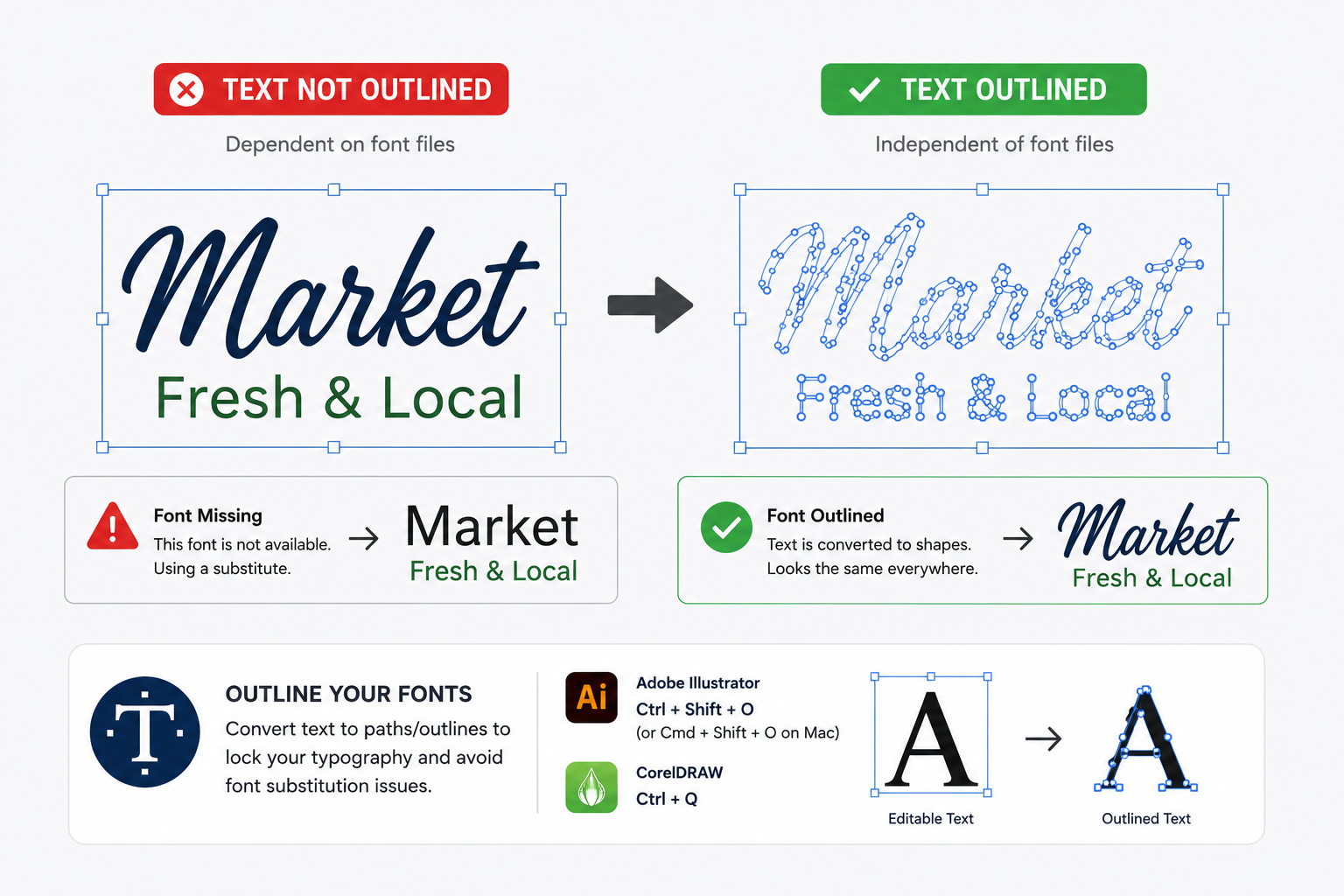
Before saving your final production file, convert all text to paths or outlines.
In Adobe Illustrator: Select all text and press Ctrl + Shift + O (or Cmd + Shift + O on Mac).
In CorelDRAW: Select text and press Ctrl + Q to convert to curves.
Once outlined, the text becomes a solid vector shape, locking your typography perfectly in place.
PDF (Print-Ready): The absolute best option. Save using the "High-Quality Print" or "PDF/X-1a" preset. Ensure compression settings preserve image resolutions.
TIFF: Best if your file is entirely pixel-based (like a giant composite photo). TIFF preserves details without adding JPEG artifact compression.
AI / CDR: Native Illustrator or Corel files are great, provided all linked images are embedded and fonts are outlined.
Pre-Flight Checklist Before Submitting to Bescost
Color workspace is explicitly set to CMYK.
Document matches the final physical print dimensions (or a clean 1:10 scale).
All font elements are fully outlined into vector paths.
All linked external images are embedded directly into the file.
Bleeds are included, and critical text sits safely inside the margins.
File is saved as a high-quality PDF or uncompressed TIFF.
Ready to bring your next big project to life? Whether you have your print-ready file good to go or need a bit of guidance navigating these layout specifications, the team at Bescost Printing is here to help. Reach out to our team today to discuss your next banner, acrylic sign, or custom fabrication project!